Password Manager and Multiple Tabs
9 years ago
Featured Answer
Sort by:Oldest
Comments (11)
- 9 years ago
- 9 years ago
Related Discussions
Ripping CDs for multiple use.
Comments (12)>>Some people can't tell the difference between average coffee and really good coffee, and so they don't care. Yeh, sure . . . some. But most people can tell because there is in fact a significant difference, so it's not a correct analogy. (And for the group of people that can't tell, why would they want to waste their money on expensive coffee ?) >>The same and the same as between average wine and really good wine. That's somewhat true, because the differences are much more subtle. But that begs the same question. Moreover, there's a problem of hype and expectation there . . . is a $200 bottle of wine really and noticeably 2000% better than a $10 bottle of wine in a blind test ? >>You get the picture. For sound, many have become accustomed to playing crippled lossy files through crappy sound systems and so yes, many can't tell the difference. That doesn't mean there isn't one. I have a medium quality system (several thousands but not several tens of thousands, nor several hundreds) and most people have been able to tell the difference if I do an A-B with high and low quality files. You just made the argument for "there's NO reason to not rip to lossless files" to be false. You're making a case for why some (5% ? - pick a number, doesn't matter) elite group of people might want to use lossless, whereas the rest wouldn't. As well, for some purposes yes, for others, no. We're not talking about "high and low quality files", we're talking about lossless, vs high quality compressed, and often less. Sure, there's a difference, but can a majority of the population (2σ of the mean) with the majority of systems out there tell ? No, and not even on decent systems. The evidence just doesn't support it. Thus, never say Never. There is not a one size fits all. ;-) This post was edited by kbarb on Mon, Feb 2, 15 at 0:38...See MoreReplacing Bluestar igniters and spark module (36-inch RNB)
Comments (38)It's been a long time since I thought about this. I was having an issue recently that I think was probably just water in an igniter (overflow or from a pot put back on the stove to dry after cleaning). I'd been meaning to check back and remind myself what I did and maybe update if I change something out. I did notice that the screws attaching the igniters were pretty corroded. That may have been a bad material choice on my part. My quick and dirty troubleshooting would be to trade igniters from a working burner to a nonworking burner to decide between module and igniter. If the same burner still doesn't work, you might also check out the wiring to see if it's been pinched or otherwise has a problem. That's my mute-the-work-conference-call-and-type-real-quick response....See MoreComputer Definitions
Comments (0)Adware: Computer script, code, or program which delivers banners or other types of advertising to a users computer. Delivery of the adware is often accomplished when program developers include the script, code or program as part of an application, and can also be contained within cookies received from some websites. Adware should not be confused with the free program "Ad-Aware" from Lavasoft, which can detect and remove adware and many other types of intrusions. AntiVirus: A software program which helps protect a computer against being infected by a virus. BIOS Basic Input/Output System is the program which runs when you start your computer, and which communicates between the devices in your computer. The system BIOS is normally stored in an EPROM chip (Erasable Programmable Read Only Memory) located on the motherboard. Browser: A software program used for viewing Internet websites. Popular programs include Microsoft Internet Explorer, Mozilla, Opera, Firefox and Netscape Navigator. Cache: A place to store something (more or less) temporarily. Web pages youve visited are stored in your browsers "cache" directory on your hard drive. ISPs (Internet Service Providers) sometimes cache web pages, which speeds up access times for users since the page is being read from cache memory and not downloaded from the actual web site. Web browsers usually have an option to let you adjust the size of your browser cache file. CD: Compact Disc. Most often used for music and photo formats, but also used to store other types of data. See below. CD Burner: A CD drive that is capable of writing data to a CD (Compact Disc). The process if often referred to as "burning". A small laser is used and the process does generate a small amount of heat, hence the term. CD-R (Read Only). Once data is burned to a CD-R, the CD cannot be over-written with new data. CD-RW (Read and Write). Can be used repeatedly. Data may be erased and re-written, much like the older floppy disks. Client: A software program that is used to obtain data from a software program on another computer. For example, Internet Explorer, Nestcape and Firefox are a type of Client. Codec: Video and Audio. Short for compressor/decompressor, a codec is a program used for compressing and decompressing data. Codecs can be used in software, hardware, or a combination of both. Some popular codecs for computer video include MPEG, Indeo and Cinepak. It is normal to have multiple Codecs for audio and video installed on your computer. Cookies: Cookies are small text files that Web sites place in the browser cache, so it can recall specific information. Typically passwords and user IDs are stored. They are also used to recall preferences for page content or personalized pages. Cookies can also be used to build a profile of which sites you visit and which banner ads you click, if any. Advertisers use this information to deliver targeted ads. Some sites use temporary cookies (called session cookies) that are deleted when you exit your browser. Others place persistent cookies which remain on your hard drive until you delete them. Cookies are not generally considered to be Spyware unless malicious or intentionally intrusive. Please refer to the definition of Spyware. Copy: A secondary representation of an original. If you copy a file or a folder, the original is not usually erased. CPU: Central Processing Unit. The main processing chip of a computer which plugs into the motherboard. Its speed is expressed in Megahertz or Gigahertz. For example, older computers may have CPUs that are rated at 300-600 Megahertz, which is considered slow by todays standards. Current CPUs are generally 1.5, 2.0, 2.5 Gigahertz or better. Many people refer to the entire computer case or tower as a CPU, which in broad terms, is acceptable. Desktop: The operating system user interface, which is designed to represent an office desk with objects on it. Rather than physical telephones, lamps, in/out baskets, etc., the operating system desktop uses program and data icons, windows, taskbars, and the like. Basically, it is the screen you see after your computer completely finishes "booting" or starting up. Desktop Icon(s): Generally, desktop icons are shortcuts. A shortcut is a "pointer" to a file. Creating a shortcut allows you to quickly access a program or document no matter where it is stored. For example: you might create a document using Microsoft Word and then store the document in a folder called C:\My Documents\ My Memoirs. Instead of having to search through your hard drive and folders to find the file each time you want to work on it, you can place a shortcut to the file on your Desktop. When you wish to work on the document, you simply click on the shortcut to open the file. Remember, a shortcut is simply a pointer. Deleting a shortcut will not remove the original document or file from the computer. However, some Icons on the desktop are programs and while Not recommended, some people use the desktop as a place to store files, programs, and downloads. To determine if a desktop icon is a shortcut or an actual program file, use the mouse to right-click the icon and then select "properties". If the icon is a shortcut, a shortcut tab will be visible. DVD: Digital Video Disk. Used to store Digital Videos such as Movies etc. However, new technology is allowing DVDs to be used for other things, such as storing data, music, etc. If it seems confusing, that is because it IS confusing. Manufacturers are still trying to agree on standard formats. Current DVD formats include: DVD+R, DVD+RW, DVD-RAM, DVD-R, DVD-RW, DVD-ROM. Perform a search using a search engine on the Internet, with the words "DVD Formats". You will find many sites further describing the technology. Download: To transfer data from a remote computer to your computer. Driver: A "driver" is simply a file (software) which contains instructions to control a hardware component or peripheral device of a computer, such as a modem, disk drive or printer. If you do not have the current device driver for a specific device, the device may not function properly. Very often, drivers..or updated drivers...can be found on a manufacturer's homesite for a particular device. Just as often, updated drivers are not listed because they do not need to be updated...or the manufacturer has not issued any updates. It is a good idea, when installing a purchased device such as a CD or DVD drive, to visit the manufacturers' website and check for updated drivers for the specific device. Error Message: An error message is a warning which is displayed whenever an error occurs during the operation of the program. A record of the type of error, its location, and its cause, is normally stored in an error log. Very often, the error log can be found within the programs folder, and can be viewed if opened with Notepad. Fatal Error Message: A system or application (program) error which stops or locks-up the computer and will normally be resolved by restarting the computer. Ordinarily, there is no permanent damage to the computer itself. A fatal error indicates a major problem with an application or program. A fatal error can also be generated due to some hardware problems. HDD: Hard Disk Drive. See next definition. Hard Drive: (Hard Disk Drive or HDD) The main device a computer uses to permanently store and retrieve information. Drives are sealed units typically found inside the computer. They may contain one or more disks within, depending upon the size of the drive. However, no matter how many disks the drive contains, the unit itself is considered to be one hard drive. To add a Hard Drive, one would install an additional unit. Older consumer hard drives started out small -for example 250 Megabytes- and were limited for a number of years, to approximately 2 Gigabytes in size. This was due to various technical issues. In recent years, the 2 Gig limitation has been eliminated, and drives of 80 Gigabytes or more are now common and affordable. Hardware: The physical and mechanical devices that make up a computer system, to include the CPU, motherboard, hard drive, monitor, keyboard, and mouse. IDE: Integrated Drive Electronics. A Hard disk drive with built-in electronics necessary for use on a computer. It includes on-board diagnostics. IDE also refers to the interface to which disk drives connect. Install: Adding a program to your computer which usually involves running an installation application for the desired program. For example, an installation file for the program "Irfanview" is named iview350.exe The 350 represents the version of Irfanview the installation file will install. The prior version of the program was iview325.exe ISP: Internet Service Provider. An ISP is a company that provides access to the Internet. For example: Verizon, Comcast, Cebridge, Direcway, MSN. ISP's provide dial-up, Cable, DSL, and Satellite service. Malware "Malware" is short for 'malicious software' and is usually used as a catch-all term to refer to any software which causes damage to a single computer, server, or computer network. Memory: Also referred to as RAM, or Random Access Memory. Enables a computer to store, at least temporarily, data and programs. The more memory you have, the more programs you can have running simultaneously and the more data can be held for faster access by your machine. Memory does not "remember" your data. Memory is dynamic, so when the computer is switched off whatever programs or data that were in memory disappear. You must save your data to a storage device such as a hard drive or removeable disk, if you wish to keep it after the computer is turned off. Hard drive storage space is NOT memory. Menu Bar: A menu bar is usually a horizontal assembly of words or icons you click on to open a menu or perform a function. They can be located at the top or your computers screen, the top of your browsers window, or at the top of a webpage. Motherboard: The main circuit board inside a computer, containing the central processing unit, the bus, memory sockets, expansion slots etc. Peripheral(s) A piece of equipment (mouse, printer, scanner, etc) attached to a computer to perform tasks that a computer cannot do itself. RAM: Random Access Memory: The most common computer memory which can be used by programs to perform necessary tasks while the computer is on. An integrated circuit memory chip allows information to be stored or accessed in any order and all storage locations within are equally accessible. RAM Types: Basically, there are two types: Dynamic RAM (DRAM) and Static RAM (SRAM). Dynamic RAM (or DRAM) is used for main system memory. SRAM: Used for Level 2 Cache. It is used as a computer's secondary (or L2) cache, which is a holding area for data outside the processor. It is not integrated into the processor as primary cache, so it is expandable. SDRAM: (Synchronous Dynamic Random Access Memory) is a newer type of DRAM that can run at much higher clock speeds than conventional memory. SDRAM synchronizes itself with the CPU's bus and is capable of running at 100 MHz. SIMM and DIMM: SIMM stands for Single In-line Memory Module DIMM stands for Dual In-line Memory Module. SIMM and DIMM simply refers to the way the memory is packaged (the physical appearance of the memory). SIMMs must be installed in pairs. For example, if you have eight RAM slots on your motherboard, you have to add SIMMs two at a time. You couldn't install seven SIMMs and leave one slot empty. DIMMs can be installed one at a time. Ram modules have contacts on them. They are gold or tin (a dull silver color). If you use one type, you should not mix them with the other type. There is parity and non-parity RAM. You can tell if your RAM has parity checking by counting the number of chips on the 'stick'. If the count is odd, you have parity checking. You cannot mix parity RAM with non-parity RAM. When handling RAM, it is important to keep the contacts clean, and not touch the contacts with fingers etc. Registry: A Windows database that holds configuration information. In simple terms, when you start your computer, the BIOS gives it an identiy by describing the devices it has available. The Operating System, or "OS" ( Win95, 98, ME, XP etc.,) then starts to "load", and it's configuration is defined by entries in it's registry. Software (programs) installed on the computer almost always enter values to the registry. Doing this allows the OS to knit everything together for a smooth running system. Therefore, it is important to properly "install" and "un-install" software (programs). Since the Registry is a critical database, it is usually ill-advised to make changes in it manually, unless the user is experienced in doing so. Ribbon Cable: IDE devices use a ribbon cable to connect to each other. Ribbon cables have all of the wires laid flat next to each other instead of bunched or wrapped together in a bundle. IDE ribbon cables have either 40 or 80 wires. There is a connector at each end of the cable and another one about two-thirds of the distance from the motherboard connector. Safe Mode: Safe mode is primarily used to troubleshoot problems with Windows by only running the bare essentials of the Windows operating systems and device drivers. Once entering safe mode, the user can execute commands and load devices one at a time. For example, if your Win98 computer "hangs" while booting, you can start in "safe mode" and load device drivers one at time to locate the problem. Safe Mode is also used to remove or delete files which are otherwise "locked" or "in use" during normal operation. Additionally, a "system restore" can be performed in safe mode which allows the user to restore their system to previously recorded settings. For most Windows computers, Safe Mode may be entered by continuously tapping the F-8 key as the computer "boots" or starts. Software: A program of detailed instructions which enable computer hardware to function. Spyware: Installs and gathers information from a computer without permission, and reports the information to the creator of the software or to one or more third parties. It provides the consumer with little or no control over removing the software. Spyware can change system settings, install keystroke loggers, collect and report consumer's personal information, use computer processing capacity without permission, and deliver spam or ads without consumer's notice and consent. Taskbar: At the bottom of the Windows screen, it contains the Start button, icons for open applications, the Quick Launch area, and the Tray or notification area. Trojan: A program that is installed without your knowledge and carries a destructive payload. Once your computer becomes infected by the worm or virus, it can be very difficult to repair the damage. Trojans usually come attached to another file, for example: .avi, .exe, or even .jpg. Many people do not notice or see file extensions, so what may appear as "fun program.zip" in reality could be "fun program.zip.exe." The difference here is the added .exe extension. Once the file is opened, the Trojan quietly installs itself. Title Bar: The band across the top of a window containing the title of the application in the window. Toolbar: A row, column, or block of onscreen buttons or icons that, when clicked, activate certain functions of the program. Ordinarily found across the top border of a program window. Tower: Vertical case for a personal computer often placed on the floor next to or under a desk. Uninstall: To properly and completely remove a program from the computer. This is usually done via the programs' own uninstall utility, or by using Add/Remove in Control Panel. Update: A new release (or version) of a piece of software that is generally understood to be an error correction release and does not contain new functionality. (as opposed to Upgrade) Updates are usually numbered by a change in the digit after the decimal. eg: V1.1 to V1.2 Upgrade: The process of installing a newer and more powerful version of a software package or hardware. It can also be a new and more powerful version of an existing system. Virus: A program capable of causing harm to files or other programs on a computer. A virus usually duplicates itself and may even change its name to avoid detection. Viruses arrive in a number of different ways, the most common of which are via attachments to E-mail. Windows Explorer: (Explore.exe) A file manager you can use to view and manage drives, folders, and files....See More2017 Logan Labs Test Help (year 2 of soil management)
Comments (25)An excellent analysis and I'm very impressed. As an engineer, I live in the world of assumptions. As long as they’re understood, all is well. However here, I’m making a LOT of assumptions that I don’t understand very well at all, so I’m not too comfortable with my conclusions. That is compounded by the inability to really check the change from last year because of my lack of consistency (I know, I know). After going through the numbers in detail, I now see just how helpful a truly consistent measurement would have been. I'd say that's a pretty accurate description for soil analysis: a bunch of assumptions. This isn't a controlled lab situation and each year's soil sampling and test results can/will very sometimes significantly, so any variable we can control when sampling helps reduce those fluctuations. To try to stay grounded in expertise, I’ve generally just taken morpheuspa’s plan from 2016 and based on RidgeRunner’s ranges and comments, tried to convince myself of whether I could justify using the same 2016 recommendations. So, my thoughts: Why not? It's as good a place to start as any and better than starting from scratch. Assuming M III Phosphorus is what I’m adding with starter fert, bag rate of scotts starter fert (24-25-4) is 0.75 lb/k Phosphorous, or 32.67 lb/ac. I added that 4 times in 2016 for a total of 131 lb/ac of P. Not all of that hung around apparently, and since the B1 section increased by 47lb/ac and the F1 section only increased by 14lb/ac, it appears that the F1 section uses/loses P faster than the B1 section. A couple of clarifications: 1) M III (M3) is the test that was used. It is a cocktail of chemicals that is used to extract nutrients for measurement. In this case the Phosphorous is reported as lbs per acre of P2O5. (Other labs may report it as ppm of elemental Phosphorous). The nice thing about reporting it as P2O5, is that P2O5 is the form of Phosphorous contained in fertilizers. So your assumption is right. 2) Phosphorous moves very slowly (down or otherwise) through the soil and phosphorous binds within days of application and can become unavailable to the plant. In acidic soils it binds to Aluminum and Iron. In high pH soils, it binds with calcium. An assumption: the difference between F1 and B1 may be due in part to the difference in pH between your two soils as reflected in the initial test. If the target is 200, seems like another season of about 4 starter fert applications would make sense, although in the B1 section it seems like I’m cutting it close. Maybe I’ll apply a couple of the apps in that section at 0.5 bag rate? I concur. As an alternative (based on your budget) Milorganite has reconfigured their formula to 5-4-0 from 5-2-0. Now only 10-20% might be organic P, but organic P is "slow" release and would help supply P to your turf better over time. (All of P2O5 is inorganic and although inorganic P is readily available to the turf plant, it also readily binds up. I gave you the 200 range, because you had mentioned that you didn't know what target you had been given last year, 200 is his/a common target for a high maintenance lawn. Some general points of clarification: 1) for every pound of N that a plant uses (not every pound of N that is applied--but USED) the plant needs and uses 1/2 pound of Potassium and 1/4 pound of of Phosphorous. whichever is missing, is the limiting factor. 2)The ranges I gave you are the ones that soil scientist have found within which plants "appear" to do well. They are quantities averaged for soil types and plants. Research has shown that values below the range result in poor performance. That as you approach the low end, additions of that nutrient are more likely to show a visible improvement in the plant and as you approach the high end, additions of the nutrient are much less likely to result in any improvement. Values above the high end are very unlikely to show any improvement and at some point can be detrimental to the plant. (did I say this before?) Bottom line, as you progress with balancing your soil, if you reach a point within the range where you no longer see improvement, you've reached your optimum in regard to any nutrient. My Ca/Mg ratios are roughly in range (F1/B1 5.1/13.1) and slightly up from 2016 (4.7/10.6), so that’s fine, but the Calcium saturation is fairly far off. I’m assuming that this is what is causing my low pH values, but not sure how that’s calculated. Also not sure how to calculate what my expected increase in Mg saturation should be based on the fast acting lime. But since my calcium is clearly low, at a minimum I can add the same calcium (lime) app I did last year (F1: 3lb/k, B1: 1lb/k, spring and fall). The question would be can I increase that app, particularly in the B1 section, and what should the corresponding Mg app be? Since the Ca/Mg ratio is on the low side in F1 maybe I should add less Epsom Salt than I did last year? Say, 1lb/k instead of 2lb/k? Add the same or more in the B1 section to keep that ratio from becoming too large. Say, 2lb/k again. This is when a buffer pH test would help- a lot IMO. If they still have your sample (30 days?) they could run that for about $10 per sample. You are correct that base saturation reflects low pH readings and if you fill up all but 10 to 15% of the cation sites with Ca, Mg. and Potassium and leave the 10-15% to Hydrogen, you should end up with a pH in the 6's. But none of those nutrients neutralize the acidity. For soils, an addition of carbonate will do that. It's better to know how much carbonate/lime (an amount derived from buffer pH testing) is needed to raise pH than to estimate based on total base saturations. BSCR, CEC, lime and differences in lime products, etc. is a bit involved, but I'm happy to clarify any questions you have on them. As it stands now, without a buffer test, as your pH is not really moving and/or dropping and as you want to avoid freeing up any more Aluminum (which can be toxic to the turf in addition to the P issue), you want to raise your pH using lime additions. Your Mg is near sufficient levels, so it shouldn't be an impediment to your turf, however, if you wish to address the base saturation ratio, yes, 1#/k for B1 only of Epsom (considering the difference in sampling and to avoid over shooting) and mixed with the lime. Yes, I'd increase the lime app. As both areas are near the same pH, fast acting lime at 9lbs/k (B1 and F1) would be indicated and even that may not make for much movement in pH on a future test. It should help the available P values to raise. Potassium values seem to be low, and the saturation fell significantly, which, based on morpheuspa’s statements, probably has to do with the Calcium. Common lawn wisdom makes me think I should add in a potassium-rich “winterizer” app in the fall to bump that number. But it again seems like I need to add at least what I added of Potassium Sulfate in 2016 (F1: 3lb/k). However, this time it looks as though adding 3lb/k to the B1 section also might be a good idea. Agree, in fact, I'd suggest increasing to three apps of 3#/k this year. Avoid applying within 2-3 weeks of any lime app. I’ve been sufficiently warned about playing with boron in my lawn to try to improve the number without very specific advice, so I’ll probably just leave that alone this round. That's up to you, based on the soil tests and your previous app,, you could apply 2 tablespoons of Borax per k again to raise values into the optimal range. Your decision. I would have done the jar test, but I came home to a light dusting of snow. Winter isn’t done with us yet, even in S. Carolina. Hope that makes sense. Feel free to ask for any clarifications. Once again, nice job....See More- 9 years ago
- 9 years ago
- 9 years ago
- 9 years ago
- 9 years ago
- 9 years agolast modified: 9 years ago
- 9 years ago
- 9 years ago
Related Stories

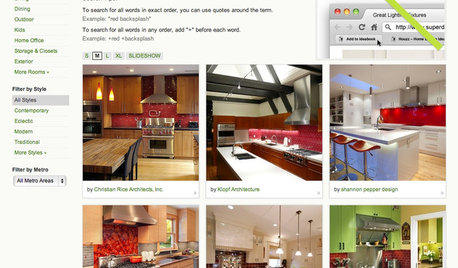
INSIDE HOUZZ9 Power-User Tricks to Get More From Houzz
Search faster and better, tap into design guides, manage your ideabooks and see photos on your flat-screen TV
Full Story
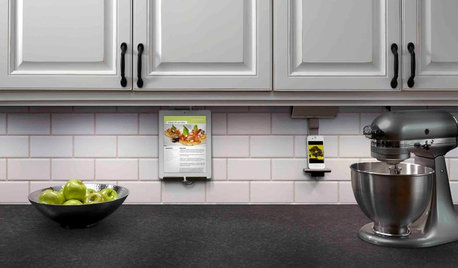
KITCHEN DESIGNHouzz Call: What’s Cooking in Your Kitchen?
Most of us turn to recipes, videos and culinary shows when we cook. Where do you set your cookbook, tablet or TV screen?
Full Story

ENTERTAININGHow to Welcome Summer Weekend Guests
Thoughtful touches and smart planning will help make your visitors feel at home
Full Story

THE POLITE HOUSEThe Polite House: How to Set Limits With Overnight Houseguests
Part 1: Establish boundaries with visitors who want to stay too long and who expect too much
Full Story
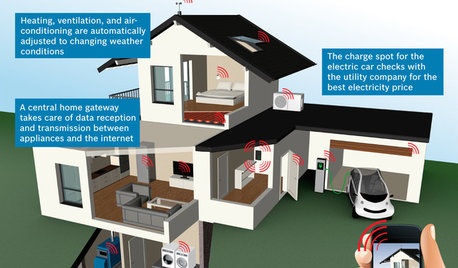
THE HARDWORKING HOMECES 2015: Inching Toward a Smarter Home
Companies are betting big on connected devices in 2015. Here’s a look at what’s to come
Full Story
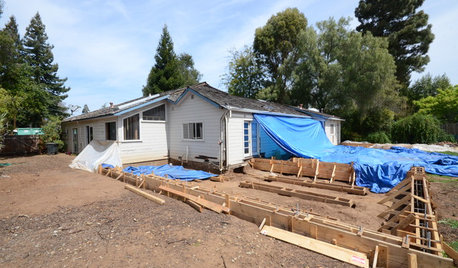
REMODELING GUIDESSurvive Your Home Remodel: 11 Must-Ask Questions
Plan ahead to keep minor hassles from turning into major headaches during an extensive renovation
Full Story
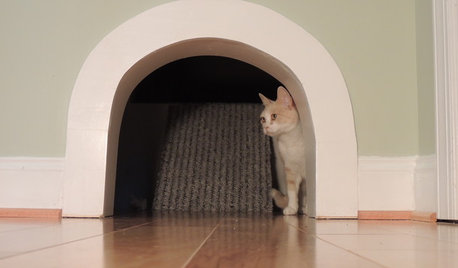
PETS15 Design-Friendly Places to Hide the Cat Litter Box
Built-in solutions include putting it in a cabinet, under the stairs, behind a wall and inside a window seat
Full Story

WINDOW TREATMENTSCurtain Speech
Learn the basic terms for parts and styles of draperies and curtains to get the look you want
Full Story

HOUSEPLANTS8 Essentials for Healthy Indoor Plants
Houseplants add so much to our homes — and can thrive when grown in the right conditions. Keep these tips in mind
Full StoryMore Discussions

zep516