

HEADS UP-Verizon eMail Changing to AOL
10 years ago
Featured Answer
Sort by:Oldest
Comments (17)
 10 years ago
Related Discussions
e-mail problems?
Comments (9)I use Yahoo mail, and all my mail from GW ended up in the inbox except the first ones from CindeeA and Laura1. Those two ended up in my bulk folder. The ones they sent after that came to my inbox. I'm pretty sure that I have gotten every message sent because no one has told me I have mail that isn't there. I sent Kat an email that she didn't get, but she sent me one just fine. I guess that's why it's good to give folks a heads up that they have mail coming. That way we know if it is working or not. Also because I can be a bit absent minded I save all my emails to a text file until I know it was recieved. That way if I have to retype it I don't forget what I wrote in the first place =) Tim...See MoreIt is possible to receive abstracts by e-mail ( free)
Comments (4)Thanks for the link; I'll check it out later. How are the free e-journals progressing? Are the editorial standards as vigorous as for the top-flight print journals? Springer also offers a sort of "best of..." service, in my case I chose Crop Science, articles garnered from an array of their journals. Unfortunately, the notification is monthly and fewer than a dozen articles are posted to me with each email. I had better response from BioMedNet and other similar sites. At one point I received email notifications of a half dozen journals from Springer and could access abstracts. Too often abstracts were not available so I could only access the first line or two of the papers at best. Not very useful or enlightening....See MoreOT- how to post an e-mail to the forum
Comments (33)One must ignore some of my previous idiotic posts as I was stumbling along trying to figure things out : ) IPs can change as some ISPs dynamically assign them from a pool of numbers rather than having a static one assigned to each pc (that would be a lot of #s). I'm still trying to figure my own out, though. Probably because I'm such an idiot : ) It changes when I ask what it is online, as I would expect. The GW one also consistently puts me in Wichita. ? But, GW seems to have me with a consistent ip across threads and time, even though my real-time inquiries change dynamically. ? Previously, I'd thought the ips were shown below the posts, because I'm not at all out West and that scenario was also giving me an ip for each post. That's why some of them made no sense, hehe. But! even though I'm stupid as !@#$, my sheer determination to make it over that hurdle, and a good dose of good ole common sense, once again, did help me to find where the op's ip turns up! It's more at the bottom of the thread, above a bit of coding gar-bahj. Sorry, but I just don't have the heart to disclose. There may be another, still unknown reason why it is not actually that person, too. (Just like the wrong assumption that the ip is not in there like everyone else's, just because it's in a different spot : ) Although it does seem to be consistent. Wish I knew someone else from that area and isp to see how their #s turn up. Lindy, does your suspect's username match up to the clue I gave above, with acoreana's username? I really think some people are probably being wrongly accused and would be surprised if it did....See MoreCan't Remember Who Said I Could E-mail Them With Plan
Comments (56)I did a quick read through, but have to come back and digest this better later. I will answer a few questions, but my brain isn't awake yet and will suely miss some. I probably should get some more printer paper today and print this out so I can answer questions better. I'm not really very concerned about security. Although I know fences can be cut, we installed nasty barbed wire all the way around our 10 acres, with a farm fence strong enough to keep horses in. Seems to be the norm here. It keeps the cows in, and sends a message to outsiders. We will eventually put a sensor alarm on the gate and on the house, etc. That said, we don't have problems in this area, since everyone living in this area is of a self sufficient mind set, and have no problems whatsoever using the means necessary for self defense. If someone wants to get you bad enough, they'll get you, so I don't worry about glass doors. There are a few cracker styles in existance. The dogtrot was one of them, but there were also single pen, double pen, saddlebag, shotgun, I-houses (were two story), and in the early 1900's the Georgian, Southern Plantation, and Victorian styles began to appear. The most important theme that ran through all of them was the protective porches. If fireplaces were used, they went on the gable ends, and because of this, had no porch in that area. The kitchens were almost always an outbuilding, but generally attatched to the porch. Haven't made a final decision on the loft yet. I guess I am leaning away from it after looking at my husband's engineering drawings. It makes for a VERY complex construction. We also ran into logistics with floor planning and subsequent lining the sight lines of the upper windows with the open lower area (great room). It all ripples, and I've about given the loft up. I don't have the energy anymore to deal with making a complex situation work out. Ten months ago, maybe, but I'm getting burned out now and just want my house. Over the weekend we visited a building that had a large gazebo connected to the house at the porch deck. I could envision that as a sewing studio. What surprised me was there wasn't a feeling of going outside the house to another building. The 8 foot porch span to the other structure didn't seem any different than a hall, and had a "safe" feeling. I will have a kitchen island, but have decided on not having a fixed one. I.m afraid of it eventually annoying me by having something in the middle of my room that couldn't be moved without demolition. We would never sit and eat at it, as some people do. We like the kitchen table. I actually have no problem with the table in the kitchen, as long as it doesn't block a working path. What I am planning is to purchase a 60 inch by 30 inch Boos brand kitchen island, with the bOos Block maple top, and put their heavy duty casters on it. I will need to provide a spot to put it when not in use, but I have an idea of the east side having two storage closets flanked by a window in the middle. That makes a storage spot for it. They are expensive, but not nearly as costly as a built in unit. A foyer, as this idiot has redrawn it, should never be a narrow corrider. I don't even really care if there is a foyer or not, but unless the kitchen or great room were in a position to make a logical entrance, we may need one. Foyers can also make a logical transition space in which to branch utilitarian rooms off of, but they have to be done just right. i would most likely opt to keep it large and open, and making sure it could double both as entry and a sort of "library" area. We decide that one really nice master bath is what we will do, with the second bathroom close by. An optimal design would place close enough to be convenient to the master, but still convenient to the rest of the house. Most of the time my husband and I don't really have issues with sharing the bathroom, but there are certain times when I'd like more privacy. I saw pictures of glass french doors connecting the master bedroom and bathroom. It was situated where a beautiful bathtub and vanity were in view, along with the windows there, and the toilet and shower, linen closet out of direct view. How the indirect area was arranged, I don't know, but that shouldn't be too difficult to figure out. It evoked a feeling of being on vacation in a serene and luxurious setting. If you were to look at a blank rectangle in front of you, the long side near you is the "front" of the house (east). The other long rectangle that is the "back" is west looking at our woods. This is where we want all the good stuff. The right hand side is north, which is where the driveway will lead to, and my kitchen quadrant. The left side is south, and where the master quadrant is. No point of our property has view of any other homes, and no aspect of it is unattractive. It's just that the backside has the mature oaks, so is a little prettier. At least until I get some other trees going. I have no problem rotating directions of rooms. In other words, the master area can run sideways rather than up and down, IF it worked better with the whole layout that way. I'm thinking where the original "study" was, give or take some rearranging, could be the entry, with laundry area or bathroom or whatever could flank off of. However, the entry could also be into the kitchen area somewhere. We are not formal people. I would like to come up with a neat idea on how to have my large freezer and an extra refrigerator convenient to the kitchen, or even a part of it somehow. I don't want these items stored far from the kitchen ever again. Maybe I need a kitchen entrance where they sit, which then opens right into the kitchen. I don't believe in garbage disposals either. I compost all my scraps. I have two Can 'O Worms vermicomposting bins in the barn. They keep my husband company in his office. I am not going to short change myself on space within the needed areas. With this amount of square footage and no other bedrooms needed, it would be silly to make our bedroom and bathroom, kitchen etc. cramped from the get go. I would actually prefer a 16 by 15 bedroom, so that I could put an old fashioned makeup dressing table in there, and a nice blanket chest. Things that make a room. After living in this small mobile, with a 12 by 12 bedroom, and a king size bed in the middle, I never want to go back to that. If this wasn't temporary, I would be moving out. There is no reason for me to "settle" since we have a clean slate. Though a 32 foot depth on the gable ends is an economical foundation to build, if we need to go a little wider we will do it. Most likely, we can make a satisfactory layout based on the 32 ft depth. I need lots of storage, but not because I got into the habit of hoarding, like many people do. I use everything I own. Some more often than others. My fabric collection is quite extensive, but that's my hobby. I could fill a large 8 by 8 closet with sewing supplies. I have lots of books, all used at various times. There are also various embroidery hoops to my machine, cutting mats, which all need careful storage. many things, like threads, interfacings, stabilizers, can be bought bulk to save money, so that's what I do when I see a good deal. So...I could easily fill space and gave up on trying to cram it in the house and not being satisfied. I decided I was not going to communicate with this most recent designer again. I'm done. There is something wrong with this man. Maybe it is medical. Maybe it is self induced. I don't know and don't care at this point. I've written this off as a $500 loss. I told my husband if I am doing all the work I am certainly not giving this guy a floor plan that he will sell to someone else and profit from. Thank goodness my husband has the Chief Architect software. It appears very tedious and "I" would never be able to figure it out, (also known as no desire to figure it out) but am sure happy he has the knowledge and enjoys computers the way he does. So anyway, I think it best for me not to look at the screwed up plan at all any more. It makes planning a good design impossible. Well, have to run. Have my doctor appointment....See More 10 years ago
- 10 years ago
 10 years ago
- 10 years agolast modified: 10 years ago
- 10 years ago
- 10 years agolast modified: 10 years ago
- 10 years ago
- 10 years agolast modified: 10 years ago
- 10 years agolast modified: 10 years ago
- 10 years ago
- 10 years ago
- 10 years ago
- 10 years agolast modified: 10 years ago
- 10 years ago
- 10 years agolast modified: 10 years ago
Related Stories
BOOKSCan Tidying Up Result in Life-Changing Magic?
Organizing phenom Marie Kondo promises big results — if you embrace enormous changes and tough choices
Full Story
TILE5 Head-Turning Tile Styles for Backsplashes and More
If plain subway tile would derail your bold decorating vision, these dashing tiles can help you arrive at a brilliant solution
Full Story
HOME TECHHow Smart TV Will Change Your Living Room
Get ready for the future of TV, in which your living room becomes a movie set, a communication hub and a gaming zone
Full Story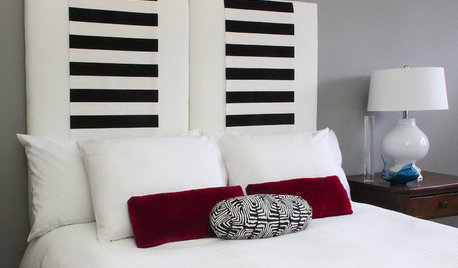
DIY PROJECTSMake an Upholstered Headboard You Can Change on a Whim
Classic stripes today, hot pink tomorrow. You can swap the fabric on this DIY headboard to match your room or your mood
Full Story
BATHROOM DESIGNLight-Up Mirrors Offer Bright Design Solutions
If you're taking a dim view of a problem bathroom area, try the flash of design brilliance that is the electric mirror
Full Story
BUDGET DECORATING10 Ways to Cozy Up the House for Fall
Get stylishly cozy for less with budget-friendly touches that will put your home in an autumn state of mind
Full Story
FALL GARDENING7 Reasons Not to Clean Up Your Fall Garden
Before you pluck and rake, consider wildlife, the health of your plants and your own right to relax
Full Story
LIFELate Again? Eliminate the Things Holding You Up in the Morning
If you find yourself constantly running late for appointments, work and get-togethers, these tips could help
Full Story
BATHROOM COLOR8 Ways to Spruce Up an Older Bathroom (Without Remodeling)
Mint tiles got you feeling blue? Don’t demolish — distract the eye by updating small details
Full Story
TASTEMAKERSCatching Up With the Queen of Shabby Chic
Rachel Ashwell defined a style embraced by countless fans over the past 25 years. Find out what she’s turning her sights to now
Full Story
More Discussions

kudzu9